
How to Create HTML Tables As a Beginner
If you’re working with HTML, sooner or later you’ll need a table. HTML tables are one of the simplest ways to organize and display data on a webpage. Whether you’re building a price list, a comparison chart, or just need a quick layout, tables make it super easy.
Here is how to create a HTML table, how to add borders, responsive designs, and even examples like nested tables and data table templates you can copy and paste.
1. Basic HTML Table Example
A simple HTML table starts with the <table> tag. Inside it, you’ll add rows <tr> and cells <td> for data or <th> for headings.

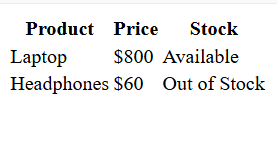
<table>
  <tr>
    <th>Product</th>
    <th>Price</th>
    <th>Stock</th>
  </tr>
  <tr>
    <td>Laptop</td>
    <td>$800</td>
    <td>Available</td>
  </tr>
  <tr>
    <td>Headphones</td>
    <td>$60</td>
    <td>Out of Stock</td>
  </tr>
</table>
This gives you a clean table with rows and columns. But right now, it has no style. Let’s fix that.
2. Border Table in HTML
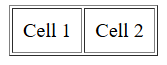
By default, HTML tables don’t have borders. To add one, you can use the border attribute or CSS.
Old way (not recommended):
<table border="1">
  <tr><td>Cell 1</td><td>Cell 2</td></tr>
</table>
Modern way with CSS (better):
3. HTML Nested Table
A nested table is basically a table inside another table. This is useful if you want to display detailed info inside a larger cell.
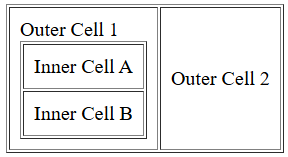
<table border="1">
  <tr>
    <td>
      Outer Cell 1
      <table border="1">
        <tr><td>Inner Cell A</td></tr>
        <tr><td>Inner Cell B</td></tr>
      </table>
    </td>
    <td>Outer Cell 2</td>
  </tr>
</table>
While nested tables work, try not to overuse them because they can make your code messy.
4. HTML Responsive Table
Regular tables can break on smaller screens. To fix this, you can make your tables scrollable or adapt to different devices.
Here’s one common approach:
| Month | Sales | Profit |
|---|---|---|
| January | $5000 | $2000 |
| February | $4000 | $1500 |
Code Example:
<div style="overflow-x:auto;">
  <table border="1">
    <tr>
      <th>Month</th>
      <th>Sales</th>
      <th>Profit</th>
    </tr>
    <tr>
      <td>January</td>
      <td>$5000</td>
      <td>$2000</td>
    </tr>
    <tr>
      <td>February</td>
      <td>$4000</td>
      <td>$1500</td>
    </tr>
  </table>
</div>
This way, if the screen is too small, the table becomes scrollable horizontally instead of breaking your design.
5. HTML Data Table Template
If you often use tables, you’ll love having ready-made templates. Here’s a quick HTML data table template you can copy:
| Query | Total Searches | Unique Users | Average Results |
|---|---|---|---|
| test | 700 | 54 | 84% |
| marketing | 530 | 32 | 10% |
| provider: hey | 123 | 12 | 27% |
You can easily style this with CSS to look like a modern data table. if you want to build yoour own data tables online in just a few minutes with your own csv file. You may use our free HTML Table Generator tool that allows you to create tables more faster and export generated code.
Also look:
- Sortable HTML Data Table With CSS and JS
- HTML Data Table with a Fixed (Sticky) Header
- Sortable Data Table (HTML, CSS, JS)
6. Styling Your Tables
A table without style looks boring. You can make it attractive using CSS:
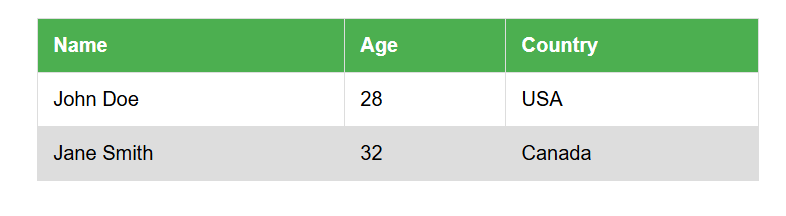
HTML Code Example:
<table>
  <thead>
    <tr>
      <th>Name</th>
      <th>Age</th>
      <th>Country</th>
    </tr>
  </thead>
  <tbody>
    <tr>
      <td>John Doe</td>
      <td>28</td>
      <td>USA</td>
    </tr>
    <tr>
      <td>Jane Smith</td>
      <td>32</td>
      <td>Canada</td>
    </tr>
  </tbody>
</table>
CSS Code Example:
table {
  width: 100%;
  border-collapse: collapse;
}
th {
  background-color: #f4f4f4;
  color: #333;
}
td, th {
  border: 1px solid #ddd;
  padding: 10px;
}
tr:hover {
  background-color: #f9f9f9;
}
Here are some more tips, on how to style html tables using css this tutorial will give you more insight in terms of understanding more about customizing html tables, from background, inserting images in tables even alignment to get more responsive layouts that fit perfectly on every screen especially when using table data in html.
Final Thoughts
HTML tables are simple but powerful. From a basic border table in HTML to a fully responsive table, you can style them any way you want. You can even experiment with nested tables or start with a ready-to-use HTML data table template to save time.
If you’re building projects with tables, remember to keep them mobile-friendly and easy to read. A clean, styled table can make your content way more professional.


Comments (0)